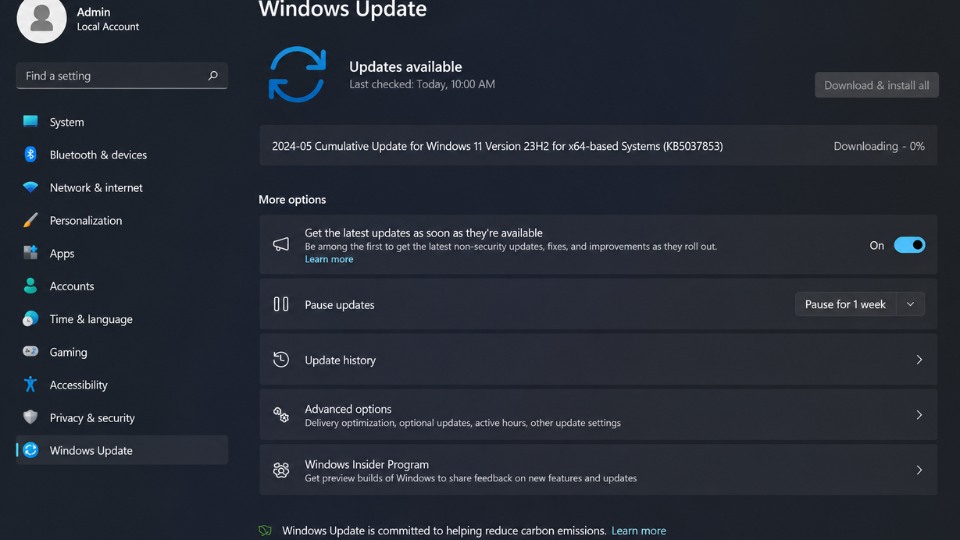
Bạn đang cập nhật Windows 11 (feature update hoặc cumulative update) nhưng tiến trình bị kẹt cứng ở 0% và không nhúc nhích? Đây là lỗi phổ biến trên Windows 11, thường do file cập nhật bị hỏng, thiếu dung lượng, hoặc xung đột dịch vụ. Dưới đây là cách khắc phục hiệu quả nhất theo thứ tự.
1. Kiểm tra cơ bản trước tiên
- Kiểm tra ổ C: phải còn ít nhất 25-30GB trống.
- Khởi động lại máy tính nhiều lần và thử chạy Windows Update lại.
- Ngắt kết nối tất cả thiết bị USB không cần thiết (chỉ giữ chuột và bàn phím).
2. Chạy Windows Update Troubleshooter
- Nhấn Windows + I mở Settings.
- Chọn System → Troubleshoot → Other troubleshooters.
- Tìm Windows Update → nhấn Run.
- Để Windows tự động sửa lỗi.
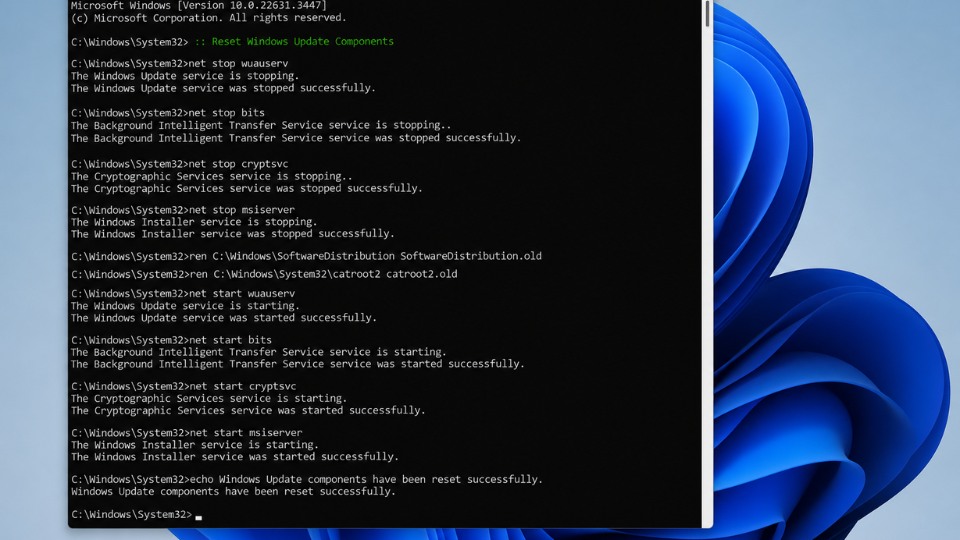
3. Reset Windows Update Components (Cách rất hiệu quả)
Mở Command Prompt với quyền Administrator:
- Nhấn Windows + S, gõ cmd, chuột phải → Run as administrator.
- Gõ lần lượt các lệnh sau (Enter sau mỗi lệnh):
cmd
net stop wuauserv
net stop cryptSvc
net stop bits
net stop msiserver

ren C:\Windows\SoftwareDistribution SoftwareDistribution.old
ren C:\Windows\System32\catroot2 Catroot2.old

net start wuauserv
net start cryptSvc
net start bits
net start msiserver- Khởi động lại máy và thử cập nhật lại.
4. Sửa lỗi hệ thống bằng DISM và SFC
- Mở Command Prompt (Admin).
- Chạy lần lượt hai lệnh sau:
cmd
DISM /Online /Cleanup-Image /RestoreHealth
sfc /scannow- Khởi động lại máy.
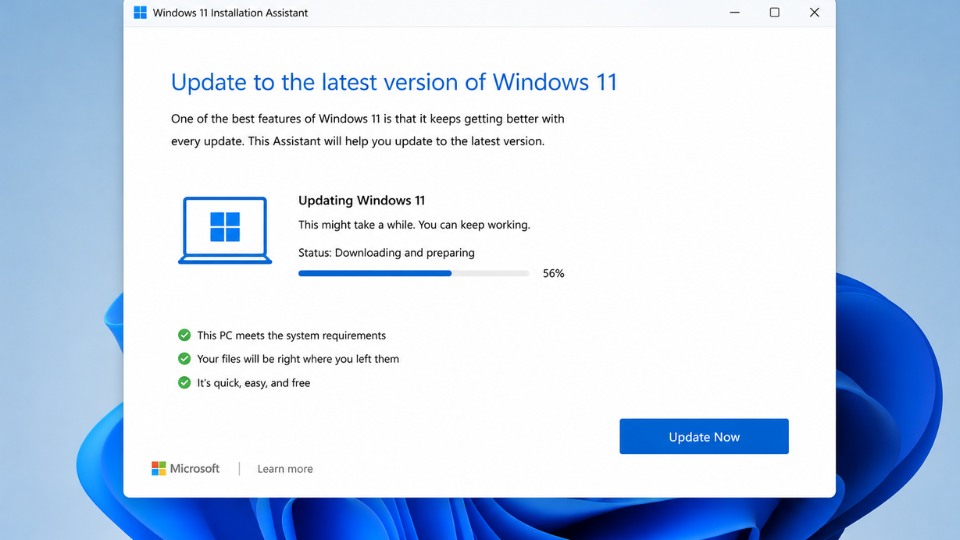
5. Sử dụng Windows 11 Installation Assistant (Cách sạch và nhanh)
- Truy cập trang chính thức Microsoft: microsoft.com/software-download/windows11
- Trong phần Windows 11 Installation Assistant, nhấn Download Now.
- Chạy file tải về và chọn Update Now.
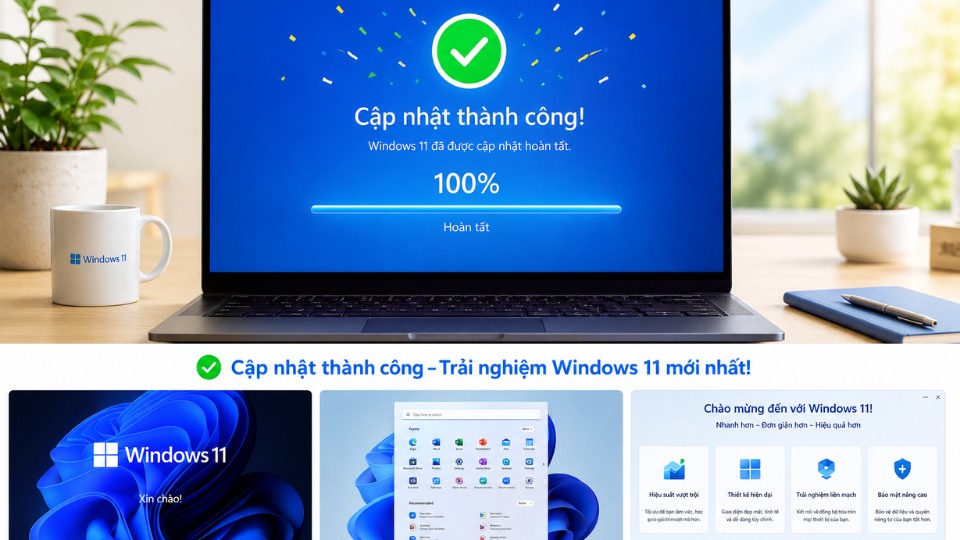
- Quá trình sẽ tải và cài đặt lại.
6. Các cách nâng cao khác
- Thực hiện Clean Boot để tắt phần mềm xung đột:
- Nhấn Windows + R → gõ msconfig → tab Services → tick Hide all Microsoft services → Disable all.
- Tab Startup → mở Task Manager → Disable tất cả → Restart.
- Tắt tạm thời Windows Defender và antivirus thứ ba.
- Nếu vẫn kẹt: Tạo USB boot Windows 11 và thực hiện Repair Upgrade (giữ nguyên file và ứng dụng).