Bạn gặp lỗi 0x80073D0A (thường kèm thông báo “Try that again, Something went wrong” hoặc “ERROR_INSTALL_FIREWALL_SERVICE_NOT_RUNNING”) khi cài đặt / cập nhật ứng dụng từ Microsoft Store hoặc Xbox App? Đây là lỗi phổ biến, nguyên nhân chính là dịch vụ Windows Defender Firewall bị dừng hoặc hỏng. Dưới đây là cách khắc phục theo thứ tự hiệu quả nhất.
1. Khởi động Windows Defender Firewall Service (Cách quan trọng nhất)
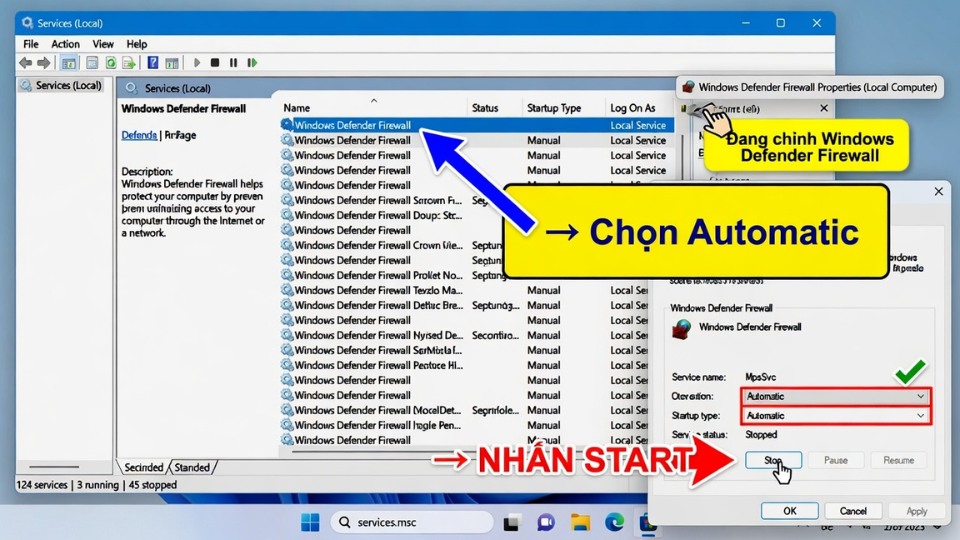
- Nhấn Windows + R, gõ services.msc rồi Enter.
- Tìm Windows Defender Firewall.
- Chuột phải → Properties.
- Đặt Startup type = Automatic.
- Nhấn Start (nếu đang Stopped) → Apply → OK.
Khởi động lại máy và thử cài app lại.
2. Chạy Windows Store Apps Troubleshooter
- Nhấn Windows + I mở Settings.
- Chọn System → Troubleshoot → Other troubleshooters.
- Tìm Windows Store apps → nhấn Run.
- Để Windows tự động sửa lỗi.
3. Reset Microsoft Store Cache
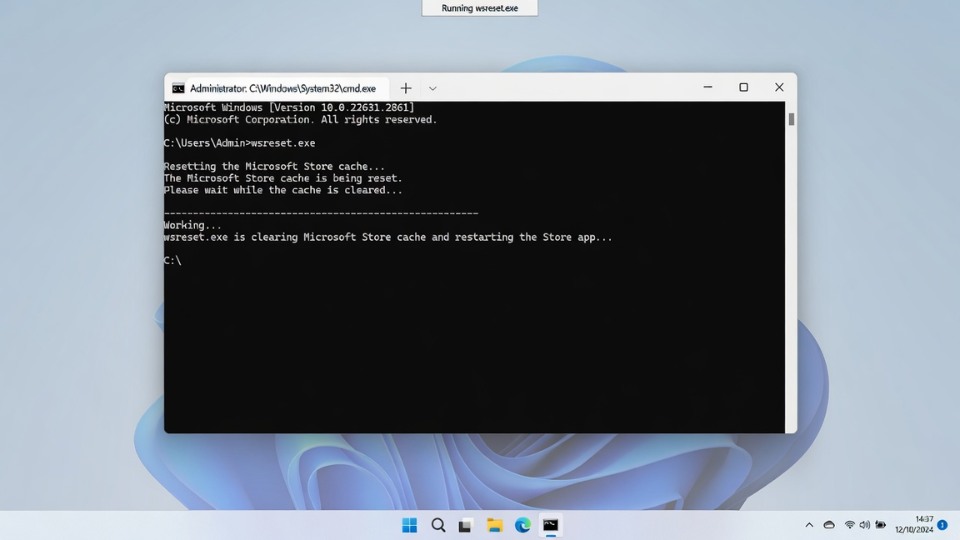
- Nhấn Windows + R, gõ wsreset.exe rồi Enter.
- Một cửa sổ Command Prompt trắng sẽ hiện lên khoảng 10-30 giây rồi tự tắt.
- Mở Microsoft Store và thử lại.
4. Re-register Microsoft Store qua PowerShell
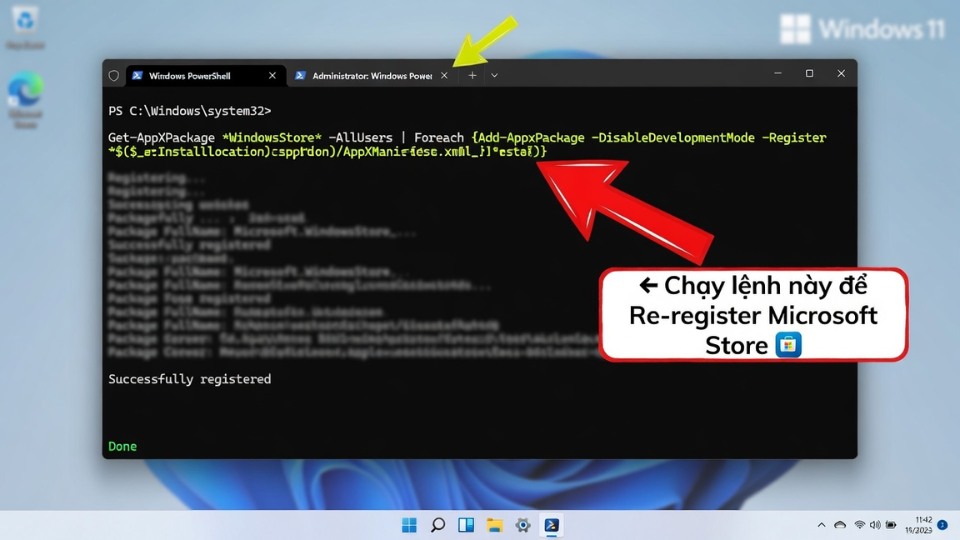
- Nhấn Windows + S, gõ PowerShell, chuột phải → Run as administrator.
- Dán lệnh sau rồi Enter:
PowerShell
Get-AppXPackage *WindowsStore* -AllUsers | Foreach {Add-AppxPackage -DisableDevelopmentMode -Register "$($_.InstallLocation)\AppXManifest.xml"}- Khởi động lại máy.
5. Các cách khắc phục nâng cao
- Cập nhật Windows 11: Settings → Windows Update → Check for updates.
- Repair Microsoft Store:
- Settings → Apps → Installed apps → tìm Microsoft Store → Advanced options → Repair (hoặc Reset).
- Chạy lệnh SFC:
- Mở Command Prompt (Admin) → gõ sfc /scannow.
- Reset Network: Settings → Network & internet → Advanced network settings → Network reset.