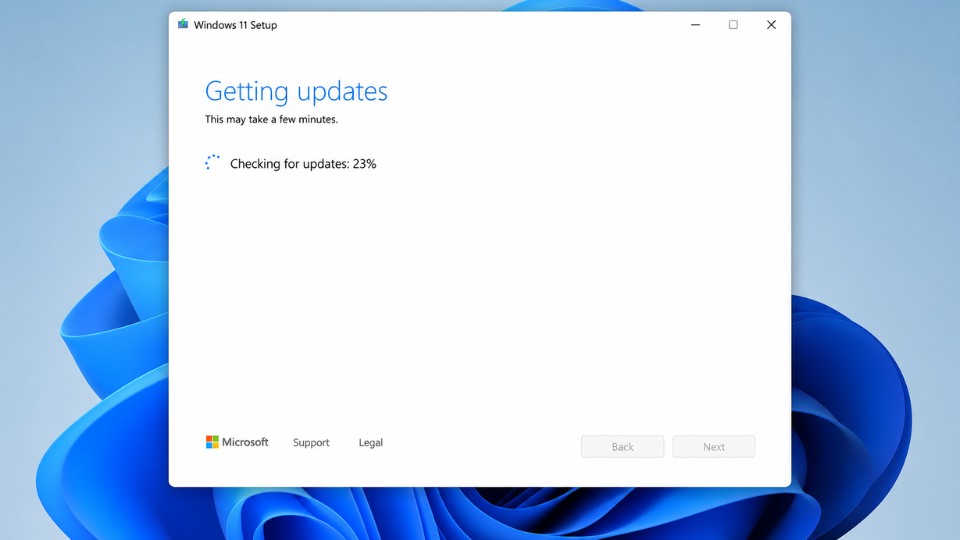
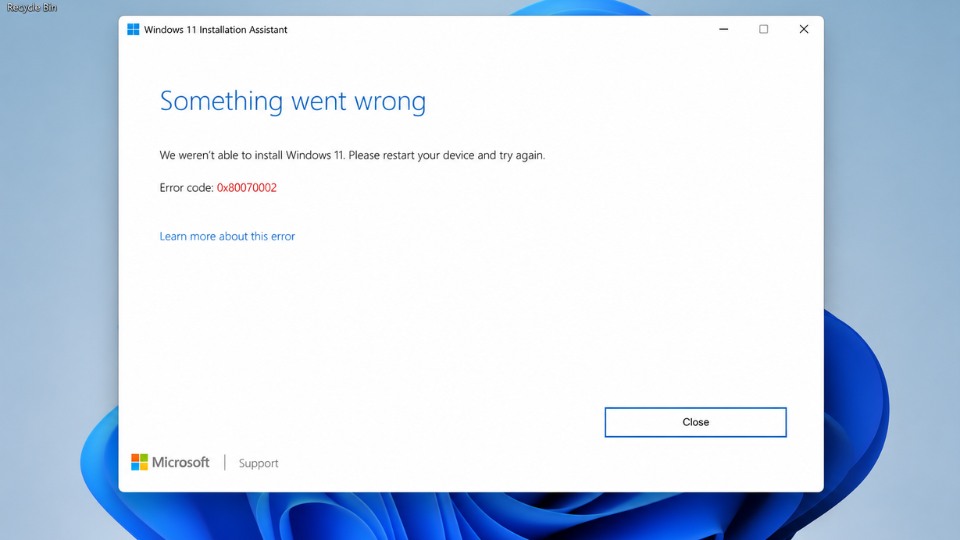
Lỗi 0x80070002 (ERROR_FILE_NOT_FOUND) thường xuất hiện khi chạy Windows 11 Installation Assistant, nghĩa là quá trình không tìm thấy file cần thiết. Đây là lỗi phổ biến do cache cập nhật hỏng, file tải bị thiếu hoặc xung đột hệ thống. Dưới đây là cách khắc phục hiệu quả nhất theo thứ tự.
1. Kiểm tra cơ bản
- Đảm bảo ổ C: còn ít nhất 25GB trống.
- Tắt tạm thời Antivirus (Windows Defender hoặc phần mềm thứ ba).
- Khởi động lại máy tính rồi thử chạy Installation Assistant lại.
2. Chạy Windows Update Troubleshooter
- Nhấn Windows + I mở Settings.
- Chọn Update & Security → Troubleshoot → Additional troubleshooters.
- Tìm Windows Update → nhấn Run the troubleshooter.
- Khởi động lại máy sau khi chạy xong.
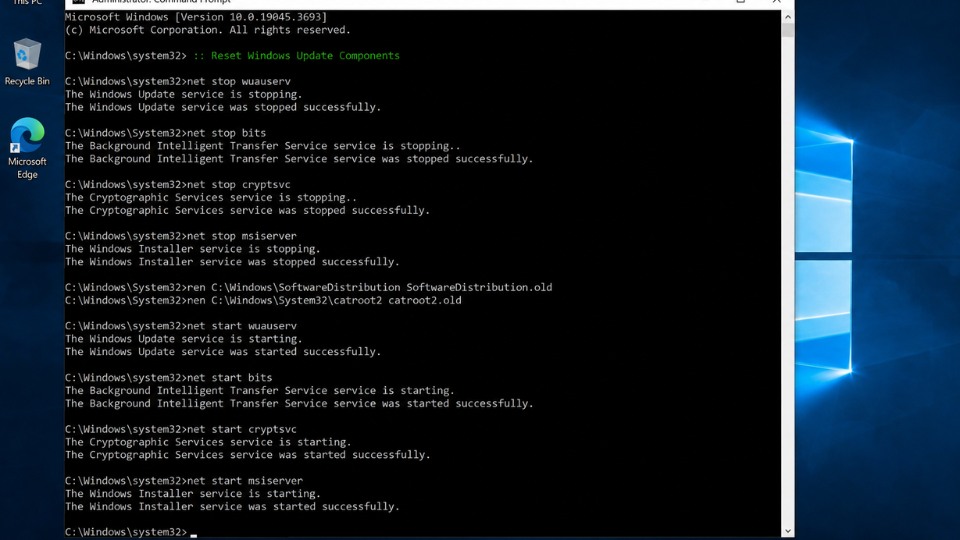
3. Reset Windows Update Components (Cách khắc phục hiệu quả cao)
Mở Command Prompt với quyền Administrator:
- Nhấn Windows + S, gõ cmd, chuột phải → Run as administrator.
- Gõ lần lượt các lệnh sau (Enter sau mỗi lệnh):
cmd
net stop wuauserv
net stop cryptSvc
net stop bits
net stop msiserver

ren C:\Windows\SoftwareDistribution SoftwareDistribution.old
ren C:\Windows\System32\catroot2 Catroot2.old

net start wuauserv
net start cryptSvc
net start bits
net start msiserver- Khởi động lại máy và thử chạy Installation Assistant lại.
4. Sửa lỗi hệ thống với DISM và SFC
- Mở Command Prompt (Admin).
- Gõ lần lượt:
cmd
DISM /Online /Cleanup-Image /RestoreHealth
sfc /scannow- Khởi động lại máy.
5. Dùng Media Creation Tool thay vì Installation Assistant (Cách khuyến nghị)
Nếu Installation Assistant vẫn lỗi, hãy chuyển sang cách này:
- Truy cập: microsoft.com/software-download/windows11
- Chọn Create Windows 11 Installation Media → Download Now.
- Chạy file và chọn Upgrade this PC now.
- Chọn giữ file và ứng dụng cá nhân.
6. Các cách nâng cao khác
- Xóa thư mục SoftwareDistribution thủ công (sau khi dừng dịch vụ Windows Update).
- Tắt Proxy/VPN nếu đang dùng.
- Tạo tài khoản Administrator mới để thử nâng cấp.
- Kiểm tra ổ cứng lỗi: Chuột phải ổ C → Properties → Tools → Check.